Technical accounts
Technical accounts allow applications and automated processes to access the Cloudogu EcoSystem without using an employee's personal account. One example is a service that regularly retrieves data from a Dogu.
Each technical account has an access token. You store this token in the application that will use the account. You decide which Dogus the token can access and how long it remains valid.
Opening the overview
Sign in to the Cloudogu EcoSystem with an account that has manager permissions. Open User Management from the Warp menu and select Technical accounts.
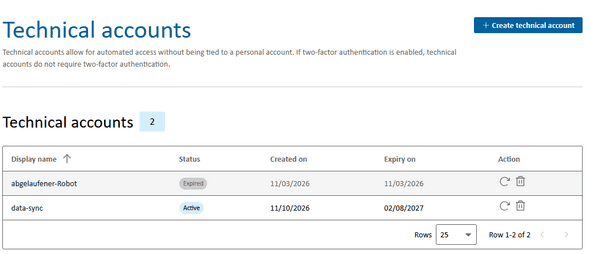
The overview lists existing technical accounts with their display name, status, creation date, and expiry date. This lets you see which tokens are still active and which have expired. Click a display name to view the account details and the Dogus it can access.
Creating a technical account
- In the overview, click Create technical account.
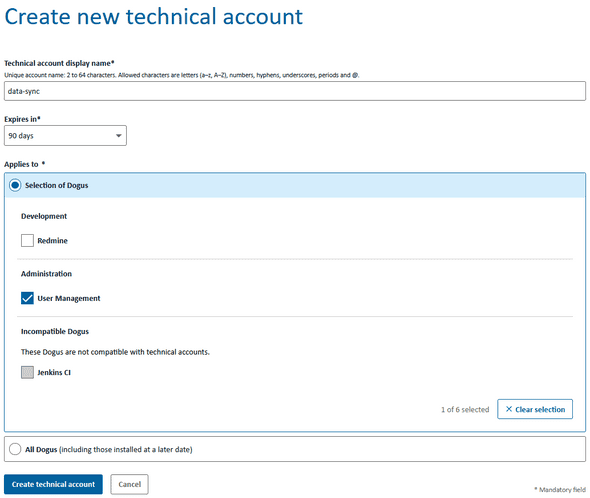
- Enter a unique name under Technical account display name, for example
data-sync. The name must contain 2 to 64 characters. Allowed characters are letters from a to z and A to Z, numbers, hyphens, underscores, periods, and the @ sign. Spaces and umlauts are not allowed. - Under Expires in, choose a validity period: 7 days, 30 days, 60 days, 90 days, or Never.
- Under Applies to, specify which Dogus the application can access. Choose Selection of Dogus to select the required Dogus individually. All Dogus also includes Dogus installed later. Entries marked as Incompatible Dogus cannot be selected individually.
- Click Create technical account.
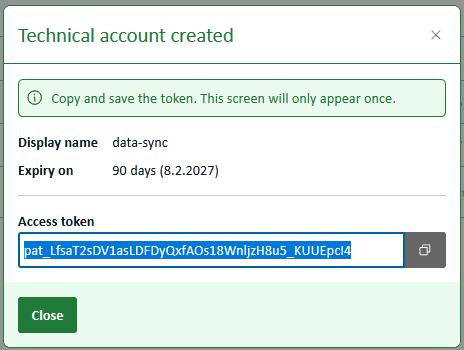
- Use the copy icon to copy the displayed access token and store it securely, for example in a password manager.
- Store the token in the application that will use the technical account. If the application requires a username, use the account name you entered when creating the account.
The full access token is displayed only once. Copy it before closing the dialog. You cannot view it again later in the account details.
Renewing the access token
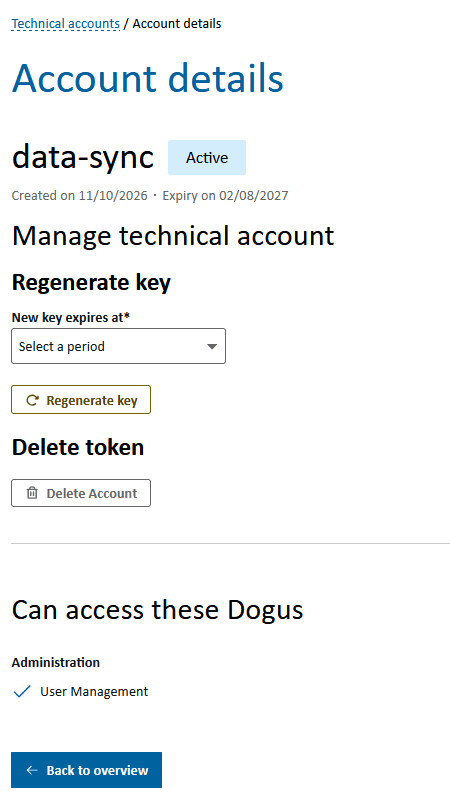
Renew the token when it is about to expire or when you need a new token for the existing account. The technical account and its selection of permitted Dogus remain unchanged.
- Open the Technical accounts overview.
- Click the display name of the account you want to manage.
- In the Manage technical account section, select a new validity period under New token expires in, for example 30 days. If the current token is still active and has an expiry date, you can also select that existing expiry date.
- Click Renew token.
- Copy the newly displayed token and store it securely. This token is also displayed only once.
- Replace the previous token in all applications that use this technical account.
The old token becomes invalid as soon as renewal succeeds. Plan to update the credentials in the affected applications immediately afterwards. Until then, these applications can no longer access the system using the old token.
Even if a token has already expired, you can select a new validity period in the account details and generate a new token.
Renewing directly from the overview
Use the Renew icon in the Action column to replace a token directly. This keeps the existing expiry date; it does not extend the validity period. Use the account details if you want to set a new validity period, especially for tokens that have already expired.
Troubleshooting
- The Technical accounts section is missing: Check that you are signed in with an account that has manager permissions.
- The name is rejected: Check its length and allowed characters. The name must also be unique.
- A Dogu cannot be selected: Dogus marked as incompatible do not support technical accounts.
- The token was not saved or has been lost: Renew it in the account details and store the new token in the affected applications.
- An application loses access after renewal: Check that the new token has been stored in the application.