1. Checklist for Administration
- 1.1 General
- 1.2 People
- 1.3 Projects
- 1.4 Issue Tracking
- 1.5 Time Tracking
- 1.6 Dashboards
This manual refers to Easy Redmine and Easy Project in version 13. The features of both products are nearly identical; therefore, the terms “Easy Redmine” and “Easy Project” are used synonymously throughout this document.
Now that your application is installed and ready for use, it is time to prepare it for the structured management of your projects, tasks, and other business processes.
With version 13, Easy Redmine / Easy Project has become even more flexible and powerful. The platform can be precisely adapted to any type of organization and workflow — from small teams to complex corporate structures.
Because of this high level of flexibility, there are many configuration and customization options. This manual guides you step by step through the most important settings and helps you set up your system in an optimal way.
In the following logically structured checklist, we highlight the key configuration areas you should consider during initial setup. Additionally, we provide practical tips for fine-tuning so that you can use all features efficiently.
Whether you are just beginning the setup process or are already using a preconfigured Easy Redmine / Easy Project environment — we recommend reviewing this checklist thoroughly. You may discover useful features or optimizations you were not aware of before.
1.1 General
1.1.1 Global Settings (General)
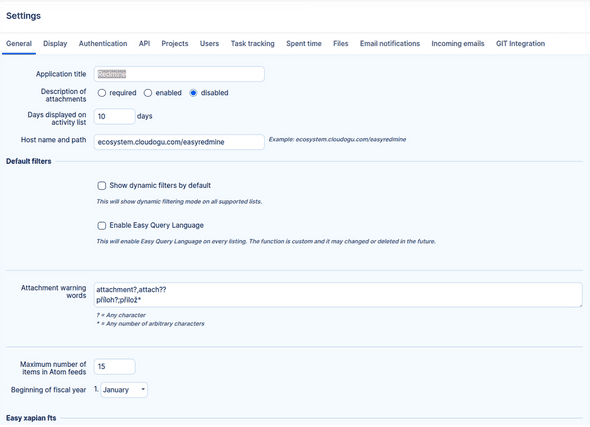
Go to: Administration > Settings > General
The options related to users and spent time are preset and do not need to be configured.
Application title – Name of the application. It is displayed in your browser and in your bookmarks as the name of the website, for example Easy Software Information System.
Hostname and path – It is important that this address is correct. It is used in email notifications to generate links to your application. For example, a link to issue 123 will be generated as:
https://is.easysoftware.com/issues/123.
Start of fiscal year – This setting is used in date filtering (fiscal year, quarter). Very useful in reports and dashboards.
1.1.2 Global Settings (Display)
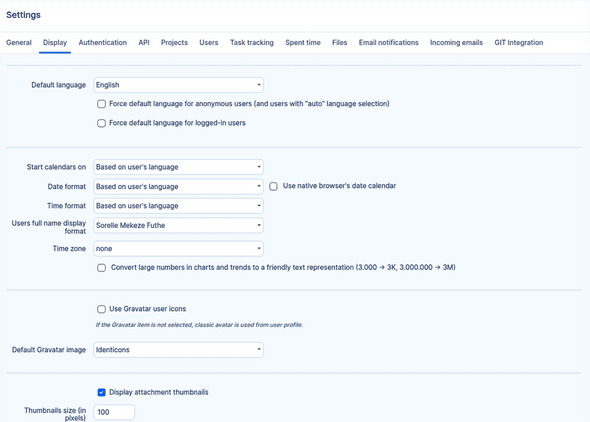
Go to: Administration > Settings > Display
Language – If all users speak the same language, we recommend selecting both settings.
The date and time formats should be selected explicitly. If you keep Based on the user’s language, you may receive “error” messages about inconsistencies.
1.1.3 Global Settings (API)
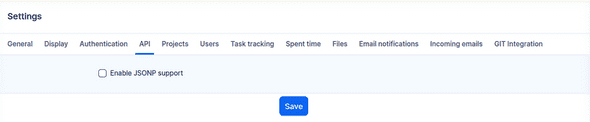
Go to: Administration > Settings > API
Enable JSON support – The checkbox only needs to be selected if you want to import or export JSON files.
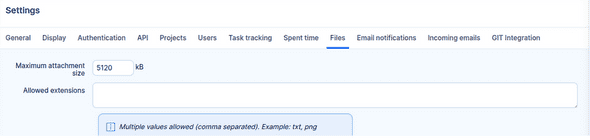
1.1.4 Global Settings (Files)
Go to: Administration > Settings > Files
Define a reasonable maximum file size for uploads.
Allowed extensions – Whitelist; only these file types are allowed for uploading. Disallowed extensions – Blacklist; all file types except these are allowed.
1.1.5 Global Settings (Email Notifications)
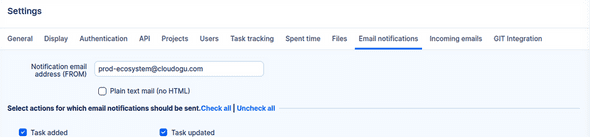
Go to: Administration > Settings > Email notifications
Email address for notifications (FROM) – We recommend using a general mailbox here, for example noreply@. This option is relevant only for Helpdesk projects with an integrated mailbox.
If you want to allow users to add comments to issues by replying to a notification, you must enter an existing mailbox and connect it to the Helpdesk (if your plan includes this feature).
1.1.6 User Types
Go to: Administration > User types
Depending on the imported data, you will see one or more preset user types. If there are several user types, first decide which ones you will use (less is more in this case — only as many as needed and as few as possible). You should delete all unused user types so that they do not appear as options when creating or editing users.
In these initial steps, make sure that you activate only the relevant start menu items.
There should not be too many entries — only the most commonly used (because of the width of smaller screens).
When entering custom menu items, use relative paths, e.g. /issues instead of https://is.easysoftware.com/issues.
An important setting is the visibility of user types. During the initial configuration, you may allow each type to see all other types.
If you do not set a user group to internal, the following applies:
- Non-internal users do not see buttons for issues, spent time, attendance, and resource management in their profile.
- Non-internal users do not see public saved filters, only their own private filters.
- Non-internal users do not see estimated hours on assigned issues or in resource management.
- Non-internal users cannot view project activities, even if they have the project permission.
- Non-internal users cannot log spent time and are not included in budget calculations.
- Administrators cannot be non-internal users, even if this is set in the profile.
Detailed technical documentation: https://www.easyredmine.com/documentation-of-easy-redmine/article/user-types
1.1.7 Export Templates
Go to: Administration > Export templates
This setting can initially be ignored. However, if you work in a larger company with a high degree of corporate identity, it may be necessary to define some brand-related export templates.
For exporting lists, you must use the dynamic token %query%, which is replaced during export by the current list you are viewing (e.g., issues for invoicing, spent time report, etc.).
Detailed technical documentation: https://www.easyredmine.com/documentation-of-easy-redmine/article/export-templates
1.2 People
1.2.1 Global Settings (Authentication)
Go to: Administration > Settings > Authentication
Authentication required – This is the default; users must log in in order to use the application. Disabling authentication is intended for cases where your application serves as an open portal with public projects. Through self-registration you give new visitors the possibility to create an account. The account must then be activated either by clicking a link received in an email or manually on the administration page (Users > Filter by Status – Registered > Edit > Activate). You can add self-registered users to a specific user group (Administration > Groups), which can then be added as a member of certain projects with a particular role (more in chapter 1.2.3). This allows newly registered users to receive defined rights without having to manually add them to projects.
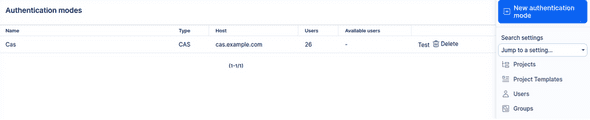
Single Sign On – If this option is available in your instance, please do not make any changes to the settings.
Single Sign-On is provided via the user management of the Cloudogu Ecosystem or the Bundescloud development platform.
Two-factor authentication using TOTP requires external mobile apps (e.g., Authy, Google Authenticator, etc.) and can be set up easily.SMS authentication requires an extended configuration of an SMS gateway connection to Easy Redmine / Easy Project.
Nevertheless, the accounts of your users are sufficiently secure if you enforce strong passwords and an automatic session expiry time. Two-factor authentication should only be used if this is required by official security policies.
Detailed technical documentation: https://www.easyredmine.com/documentation-of-easy-redmine/article/authentication
1.2.2 LDAP Authentication
Go to: Administration > LDAP Authentication
As with Single Sign-On, please do not make any changes to the configuration here.
Detailed technical documentation: https://www.easyredmine.com/documentation-of-easy-redmine/article/ldap-authentication
1.2.3 Users and Groups
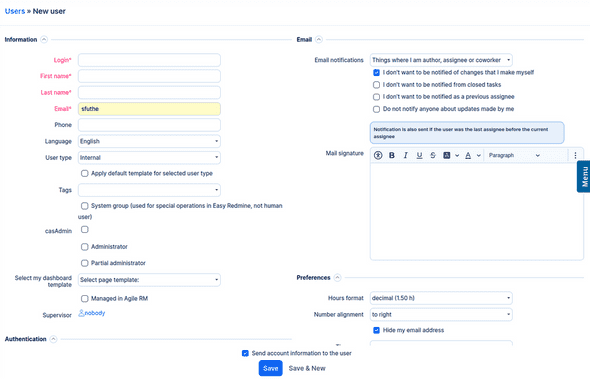
Go to: Administration > Users > New User
Basic information for creating users:
- Login and Email – must be unique.
- User type – determines the main menu and the visibility of other users.
- System group – checkbox for service accounts, for example for connecting applications via API. Please do not use this checkbox for normal user accounts.
- Administrator – sees and controls everything. Keep the number of administrators at a reasonable level.
- Sub-administrator – can access selected areas of the administration and perform all associated operations in that area.
- Authentication mode – if applicable, select the LDAP modes here.
- Time zone – if none is selected, the server’s time zone is used. If you are using the cloud, the server time is available at the bottom of the page /admin/info. However, we recommend setting an individual time zone for all users.
- Email signature – this is particularly important for Helpdesk and Sales staff who send messages from Easy Redmine / Easy Project to external customers.
Now let us focus first on user groups. Managing user groups is very simple: Administration > Groups > New Group. Name the group and add members after creating it.
User groups make it easier to filter tasks or spent time or any other entity – instead of selecting users one by one, you simply select a group. They also help with task assignment – assign a task to a group and let members choose which specific user will take it. Most importantly, groups allow fast/automatic assignment of members to projects. You only need to add the group to the respective projects under a specific role, and all users who are members of the group will automatically become members of the project. The same logic applies when members are removed from groups. If you delete a group, all members of the group will also be removed from the project.
When setting up your application, you should create a few basic groups to make future management of project members easier.

1.2.4 Custom Fields
Go to: Administration > Custom Fields > Users (or New custom field > Users)
In addition to the system attributes, you can add custom attributes (e.g., phone numbers, departments, job titles, etc.) that may have various types of values (e.g., Boolean, text, number, etc.). These fields can then be used flexibly in projects (e.g., in tabs or sections). We recommend configuring only the attributes that are truly necessary in order to keep project pages clear and easy to read.
Detailed technical documentation: https://www.easyredmine.com/documentation-of-easy-redmine/article/custom-fields
1.2.5 Page Templates
Go to: Administration > Dashboard customisation
All users have their own homepage – their personal dashboard/workspace. It is the first page you access when you log in, and it is always available in the main menu under the Home button. This page is customisable so that all users can see exactly what they need.
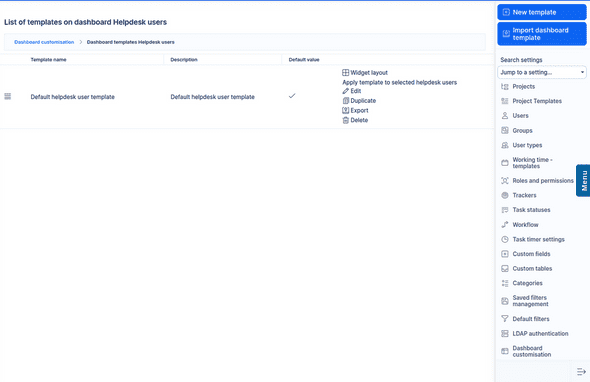
We recommend not allowing your users to change their own homepage during the first months (via Roles and Permissions – chapter 1.2.7). Users who have the same position should have consistent homepages. Otherwise, they may make changes that interfere with their work (for example, they might hide tasks they should actually monitor).
If you decide to create your own page templates, we recommend keeping them simple. Pay attention to a reasonable maximum number of items in lists (between 10–15 entries). Once you receive feedback, you can continuously optimise the pages.
1.2.6 Working Calendars
Go to: Administration > Working Time – Templates > (New Calendar)
Working calendars allow you to define a working system for the entire company (Monday–Friday, 9–17 with a 0.5-hour lunch break), specific calendars for part-time users, and even a fully customised calendar. The user’s assigned calendar determines their time and attendance reports.
Detailed technical documentation: https://www.easyredmine.com/documentation-of-easy-redmine/article/working-time-calendar
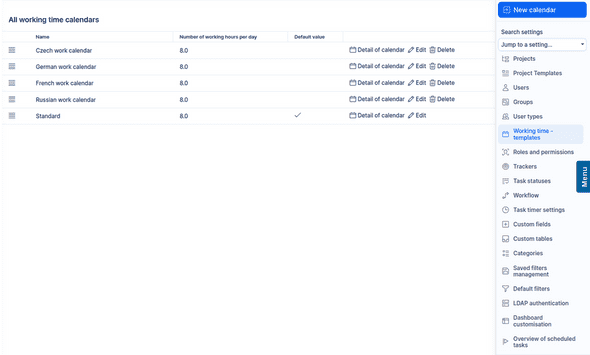
Notes:
- Work starts/ends at – the difference between these values is the total number of hours users should be at work, in our example 8.5 hours. When using the attendance functions and logging half-days in the morning/afternoon, the corresponding period is pre-filled.
- Working hours per day – how much time should be logged for tasks and projects per day. In our example, a 30-minute lunch break is included.
- Workdays in a week – here you define weekends.
- Default calendar – if you select this checkbox, this calendar is automatically assigned to all new users.
1.2.7 Roles and Permissions
Go to: Administration > Roles and Permissions

If you do not yet have any roles, you must create a new one. This setting is quite complex, as it affects many areas throughout the entire application. The most frequently used areas are: project, issue tracking, and spent time.
The individual permissions are self-explanatory. However, there are some general principles we want to highlight.
Global vs. project permissions
All special permissions are divided into two main groups:
Global – these permissions have no project context; they are used throughout the entire application. Example: Use issue list – this function is not tied to a specific project and can be used anywhere.
Project permissions – these apply only to the specific project in which the member has this role. Example: Create issues – issues are always tied to a project; you cannot have an issue without a project. For example, if you have the Management role in Project A and the Worker role in Project B, you can only create issues for Project A, because workers are not allowed to create issues.
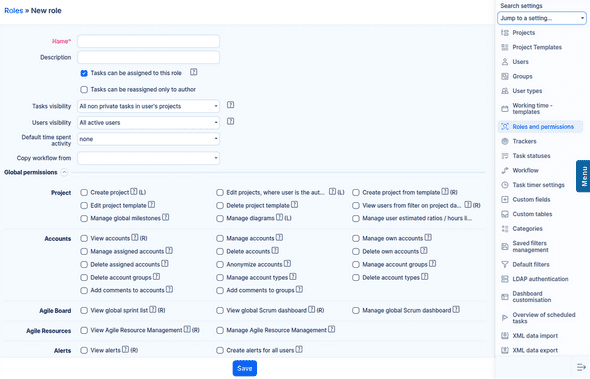
Following our Evergreen principle – Keep it simple – it is sufficient to start with three role levels: ( Top manager, Team leader,Team member) Based on your experience, you can then make adjustments and possibly add new roles for specific cases.
Special roles – Non-member, Anonymous
In the list of roles and permissions, you will always see two roles that cannot be deleted. In chapter 1.2.1 (Authentication settings), we described how authentication can be disabled – the application is then accessible without logging in. Users who are not logged in are considered Anonymous, and permissions of that role apply to them. If login is required in your application, you may ignore this role. Non-member – global permissions apply to all registered users in the application. Project permissions apply to users who are not members of the project but can still see it.
Both of the above roles can see the content of public projects, and project permissions apply to them accordingly. Normal projects are not public, but you can designate some projects as public to make them available to everyone without adding them as members.
What do the letters R, M and L stand for?
Next to certain permissions, you may see letters:
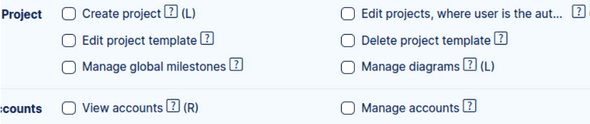
- R – Read-only - Users can see data but cannot create, edit, or delete it.
- M – Member - User must be a project member; this does not apply to the Non-member or Anonymous roles.
- L – Logged-in - User must be logged in; this does not apply to the Anonymous role.
1.3 Projects
1.3.1 Global Settings (Projects)
Go to: Administration > Settings > Projects
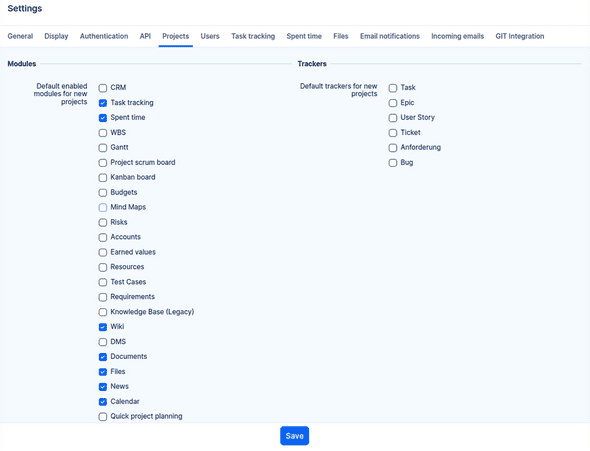
- Default modules and issue types – Select only those which you are certain will be used for all projects. Otherwise, some simple projects may appear more complicated than they actually are. These settings do not affect projects created from a template.
- Activity is selected when creating an issue (or when editing an issue) – We recommend leaving this disabled, as otherwise problems may occur when creating or editing issues via Gantt, WBS, or Quick Planner.
- Assign activities to roles – Useful only in a very complex system. Leave this option disabled.
- Display custom project identifiers – Leave this option disabled; it is used only in very specific cases. If this option is active, the field serves as a unique identifier for the project and cannot be changed afterwards.
- Role assigned to the user who creates a project (subproject) – Make sure to select a role here. Otherwise, the first role in the list will be assigned. This setting determines which role is assigned to the user within the newly created project.
- Calculate project start/project due date from issues – This setting has advantages and disadvantages: If enabled: You do not need to worry about the start and due dates of issues; you are not warned if the issue dates fall outside the project timeframe. However, you cannot filter or sort projects by date. If disabled: You can filter and sort projects by date, but users receive error messages if issue dates fall outside the project date range (e.g., when moving issues from another project).
1.3.2 Project Templates
Go to: Administration > Project templates
How can you integrate templates into your application?
From an existing project
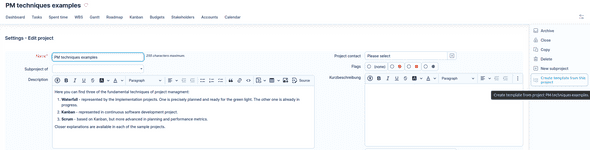
Go to: An existing project in your application > Settings > Edit > Create template from this project
Import / Export of templates
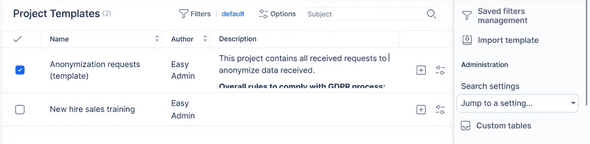
You can import or export a template under: Administration > Project templates
To export a template: Click the gear icon next to the corresponding template. Then click “Export template”
To import a project template file: Click “Import template” in the top right corner of this administration area. Upload the file.
1.3.3 Project Priorities
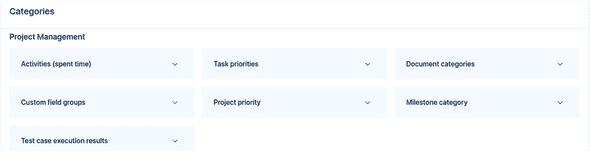
Go to: Administration > Categories > Project priority
Assign priorities to maintain an overview of your project portfolio. The highest priority is 1. You can assign an unlimited number of priority levels. As a rule of thumb: A three- to four-level prioritization is sufficient for most portfolios.
1.3.4 Project Priorities
Go to: Administration > Custom fields > Projects (or New custom field > Projects)
Decide how you would like to categorize your projects. Some commonly used examples are: Project phase (list, )Shipping date (date), Project type (list).
Detailed technical documentation: https://www.easyredmine.com/documentation-of-easy-redmine/article/custom-fields
1.3.5 Project Overview Templates
Go to: Administration > Page customisation > Project – Homepage
The project overview is the first page of a specific project; below is an example of a project overview page.
The default page template is applied to new projects. Page templates can also be applied to existing projects.
Based on our experience, we recommend using at least the following modules on the overview page: Project description or Project info Project members or subprojects can also be part of this page.
1.4 Issue Tracking
1.4.1 Global Settings (Issue Tracking)
Go to: Administration > Settings > Issue Tracking
- Show issue ID – This is useful when working with smaller issues because it allows you to navigate faster and refer to specific issues more easily.
- Show subproject issues in parent projects by default – To keep issue lists clear, we recommend disabling this. When you open an issue list for a project, only the issues belonging to this project will be displayed, and no others. If needed, you can always include issues from subprojects using a filter.
- Use color scheme for: – We recommend using priority for color-coding issues.
- Allow setting the issue due date beyond the milestone date (milestone will shift accordingly) – This setting has an effect if you use milestones in your projects. If you enable this option, you will not be prevented from setting an issue’s due date beyond the date of its milestone. Instead, the milestone will shift accordingly. If this option is disabled, users will receive an error message if they set a due date that lies beyond the milestone.
- Enable private issues – You may allow users to create issues that only they themselves can see. We recommend leaving this disabled by default and discussing with your Project Management Office or experienced project leaders or Scrum Masters whether this function is needed.
- Allow cross-project subtasks – To maintain clarity and order in issue structures, you should keep this function disabled. To link tasks between different projects, you can use issue relations instead. The hierarchy tree with parent and child issues should ideally remain within one project.
- Allow cross-project issue relations – A good alternative to the above setting.
- Allow issue assignment to groups – This only works if the group is added as a member of the project. If all members of the group are added individually, group assignment will not work.
- Calculate percentage done using – Use issue field = Users manually enter the % done for the issue based on their qualified estimate. Use issue status = For each status, you define the percentage of work completed. Example: New = 0%, In progress = 50%, Review = 90%. With this setting, users cannot manually enter the % done.
- Ignore workflow for administrators – As you will soon see, the workflow has a strong impact on how issues can be handled. If you enable this setting, you risk administrators changing issues into a state that normal users can no longer work with. We recommend leaving this setting disabled. Details on workflow can be found in chapter 1.4.4.
- Issue export limit – The limit applies to all exports, not only issue exports. Keep this value reasonable.Exporting complex Easy Project lists with too many items takes a very long time. During export, the performance for other users may also be affected.
- Attributes of parent issues – To maintain more control over individual issues, these settings should remain independent. If you select attributes calculated from subtasks, users will not be able to manually set these attributes for the parent issue, which can lead to confusion.
1.4.2 Trackers
Go to: Administration > Trackers
If you are just starting with Easy Redmine / Easy Project to manage the regular work of a team of up to 25 members, you will typically not need more than one tracker called Task. Over time, you may find that you want to differentiate the type of work your users perform more precisely. A tracker can simply be understood as a type of work order, such as: Audit, Documentation, Architectural proposal, Construction, Workshop, Programming, etc. Trackers are fully customizable; you have complete control over them.
Attributes of a tracker
Default status – When creating an issue of this tracker, this status is pre-filled. Icon – Used in Scrum/Kanban views. Standard fields – Again, “less is more.” A functional minimum is: Assignee, Description, Start date / Due date. Enable Parent task if you plan to create task structures (e.g., parent → subtask in a WBS). Enable Estimated time if you plan to use resource management. % Done has an effect on Earned Value Management. For advanced project management, you will also use milestones, which are well managed in the Gantt chart. Trackers can be activated/deactivated per project and can have their own set of custom fields.
1.4.3 Issue Statuses
Go to: Administration > Issue statuses
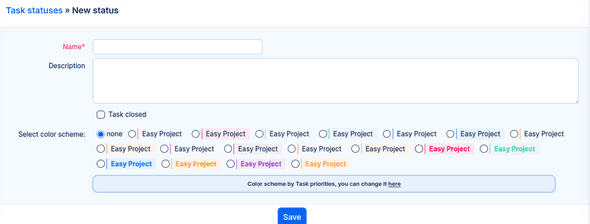
Individually definable issue statuses make Easy Redmine / Easy Project such a powerful and flexible tool. Our experience from hundreds of customer implementations shows that an initial solution typically consists of four statuses: New > In progress > Approved > Complete We recommend starting with equivalent stages that match your own practice. At the final stage, the option Issue closed should be checked.
1.4.4 Workflow
Go to: Administration > Workflow
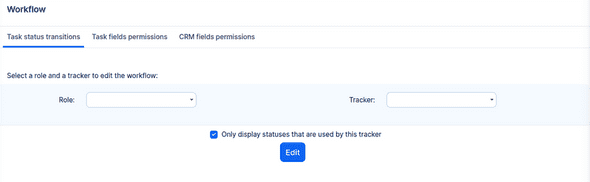
Now that we are familiar with trackers and issue statuses, we can define the issue life cycle, i.e., how statuses can progress. The workflow combines: the user’s role, the tracker, the current status of the issue and evaluates what project members are allowed to do with the issue.
Let’s explain this using a simple user story: Team members report to their team leader > their work must always be reviewed by the team leader.
This can be ensured via the workflow settings: Team members are not allowed to close issues. They may only set the issue to a status such as Supervisor review to hand over their work. The team leader has a queue of issues in this status. Only the team leader’s role can close the issue. Additionally, the team leader may reopen already closed issues Example in the workflow settings: A team member has all options to close an issue disabled, while the team leader has this option available.
1.4.5 Issue Priorities
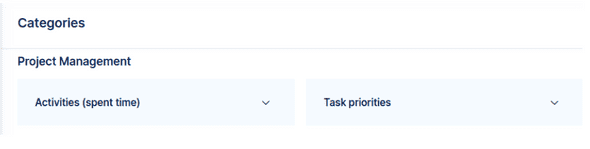
Go to: Administration > Categories > Issue priorities
Priority is another required attribute for each individual issue. The most common number of priorities is 3–5, for example: Urgent, High, Normal, Low. The most frequently used priority should be set as the default, in our example Normal.
To simplify things, it is possible to allow only selected roles to assign or change issue priorities.
1.4.6 Custom Fields for Issues
Go to: Administration > Custom fields > Issues
- Custom fields can be used in many places. Most commonly, they appear as additional attributes in issues and projects. Use them only where needed to maintain clarity.
- Below is an example describing the creation of a custom field for an issue.
- Required – If you select this option, make sure to set a default value. Otherwise, you make issue creation more difficult. Additionally, you would completely prevent issue creation: by email (Helpdesk), or from an external system via API
- Use a key/value list instead of a regular list – The regular list is kept only for historical compatibility. The key/value list works much better for adding, editing and deleting values.
- Used as filter – We recommend disabling this option. Too many available filters make it harder to work with issue lists and can significantly slow down issue list loading.
- Show as additional attribute – Useful for fields usually filled during issue creation (e.g., categorisation) but rarely changed afterwards.
- With this option, the field is hidden under Edit more attributes when updating an issue, allowing users to focus on the important fields.
Detailed technical documentation: https://www.easyredmine.com/documentation-of-easy-redmine/article/custom-fields
1.4.7 Issue Filtering
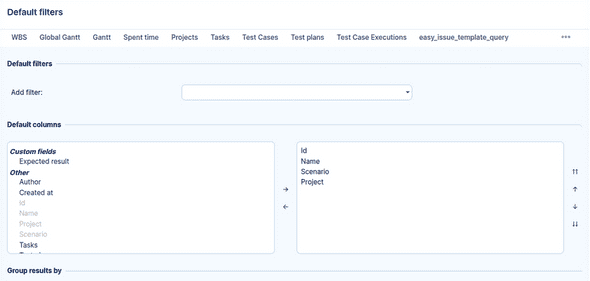
Go to: Administration > Default filters > Issues
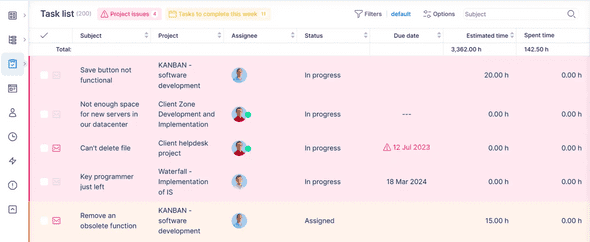
Here, you configure the default filter — the default view of the issue list when opened by any user. Important recommendations: Always set the filter Status – open, so that old, closed issues are not displayed. Consider the screen size of project members when selecting visible columns. We recommend placing the issue name (Subject) in the first column so that project members can quickly navigate into work
Project members can then adjust the filter columns ad hoc to suit their needs. Saved filters Go to: Administration > Manage saved filters > Issues. Here you can predefine other types of issue lists (including: charts, pivot tables, reports). Saved filters are displayed: in the right sidebar of the issue list, or in the header
There are many configuration options for issue sets so that you can adapt them to any possible usage scenario. For a start, we recommend creating filters such as: Overdue issues per user or High-priority issues per user
1.5 Time Tracking
1.5.1 Global Settings (Time Tracking)
Go to: Administration > Settings > Spent Time
First, we should clarify some semantic questions. What are spent time, time tracking, and time entry/entries?
Spent time is a term for the entire concept/functionality of measuring the time that employees have spent on projects.
Time tracking refers to the act or process of measuring time. The first two terms can be used synonymously.
time entry is a single data record with the following attributes, for example: Date: 2 August; User: Allison; Project: A; Issue: 123; Hours spent: 2.5 h.
Approvals for spent time
Approvals mean that project members with sufficient rights (chapter 1.2.7) can approve and reject time entries of project team members. When a time entry is approved, it receives the status "approved" and can no longer be modified (not even administratively). There are no email notifications for the approval of time entries. This means that if you want to work with this function, you should prepare filters that display only unapproved entries.
Limits
We recommend setting a reasonable limit for the past (~14 days), so that not too many values are shown. Logging time into the future should not be allowed at all (0). The daily limit is mainly intended for legislative reasons, but a restriction to 24 hours makes sense.
Other
The most important settings are: Allow time tracking on closed issues (we recommend leaving this option enabled). Require selecting an issue for time logging, which controls whether you may log time directly on the project without selecting an issue
1.5.2 Activities
Go to: Administration > Categories > Activities (Spent Time)
Used time activities are used for an additional dimension of categorization and for reporting. Use activity names that are understood by everyone in your organization. For example: Work and Meeting. Whenever users are not in a meeting, they will log Work. This gives you an overview of how much time per day is spent in meetings.
We advise creating as few categories as possible and as many as necessary. A rule of thumb is 4–5 categories.
To force users to select an activity, you can avoid setting a default activity — this way, no activity is preselected when logging time.
1.5.3 Custom Fields for Spent Time
Go to: Administration > Custom Fields > New (or New custom field > Spent Time)
In the previous three chapters about custom fields, you have learned everything important about these fields. We would simply like to recommend not making life harder for your users by defining custom fields as required. Better yet: try to avoid creating custom fields for spent time altogether. There are already enough attributes by which you can filter/report spent time:Issue attributes, Project attributes, User attributes, Activities.
Detailed technical documentation: https://www.easyredmine.com/documentation-of-easy-redmine/article/custom-fields
1.6 Dashboards
Go to: Administration > Page Customisation
In chapters 1.2.5 and 1.3.4, we already configured this setting for managing the page templates My Page and Project Overview.
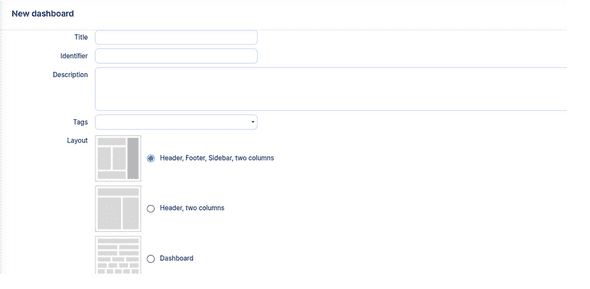
Now we will look at general dashboards that can be used for all types of company-wide overviews — we will call them global dashboards in the following. You have the possibility to create them from scratch by clicking the New page button.
Page properties
- Title – Name of the page.
- Identifier – Is used as the URL (link) to the page. In the example shown in the screenshot, the URL would be:
https://is.easysoftware.com/easy_pages/hr-reports. This is the form of the link for every global dashboard. It must be noted that only users who know the URL can access the page. Apart from the global dashboard administration (which only administrators can access), there is no other place where these pages are listed automatically. Therefore, you must provide the link to this page to the relevant users. One way to do this is to add it as a custom menu in the user type settings (chapter 1.1.6). - Layout – The most flexible layout is the Dashboard layout. Attention: Once the page has been created, it is no longer possible to change the layout.
- Page scope – Leave this set to None. The other options may be used in a custom implementation, but they are not relevant at the moment. Once you have created this page, it is also no longer possible to change the page scope.
It is highly likely that during the initial setup of the application you do not yet have a clear concept of the types of dashboards and reports you will use. This means that this setting will only make sense after several weeks of production use. Do not spend too much time creating dashboards with theoretical reports before you have enough data in the system.