2. Project Life Cycle
- 2.1 What a project does in Easy Redmine
- 2.2 Project settings
- 2.3 Project overview
- 2.4 Project life cycle (details)
- 2.5 Project modules
- 2.6 Project templates
- 2.7 Project portfolio
This manual refers to Easy Redmine and Easy Project. The functionality of the applications is identical, therefore the names “Easy Redmine” and “Easy Project” are used synonymously here.
Now that the application has been set up and configured, we can take a look at the effects of the settings and, above all, at the actual project work.
In the following chapters, we will take a top-down journey from the highest level – the projects – via the issues down to the individual time entries.
2.1 What a project does in Easy Redmine
2.1.1 Basic project and project management terminology
The terminology remains largely identical to version 12. Even in version 13 it is possible to define projects without a start or end date. This flexibility does not correspond to classical PM theory, but it is useful thanks to the configurability.
2.1.2 Project attributes
The central attributes (name, parent project, description, start/due date, public visibility, planned status, custom fields, modules, issue types) remain unchanged. The logic of inheritance of memberships, the use of private comments and the custom fields are still valid.
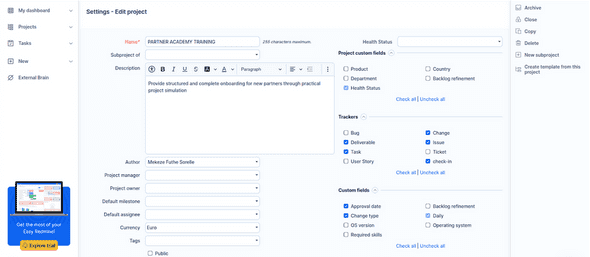
Name The name of the project serves as a unique identifier and is displayed throughout the user interface.
Subproject of
This entry defines whether the current project is a subproject of another project. This creates a hierarchical structure between projects. The parent project can aggregate issues, resources, or reports from several subprojects.
Description
A text area for explaining the content of the project, its goals, requirements or other important information.
Start date / Due date Indicates the planned project period. These dates help with scheduling and in Gantt charts.
Public visibility Determines whether the project is visible to all users or only to project members. Public projects can be viewed by everyone.
Planned status (status: planned / active / completed) Indicates which phase the project is currently in. This helps with filtering and organizing projects.
Custom fields Allow you to store additional project-specific information that goes beyond the standard attributes (e.g. customer number, budget).
Modules Here you define which functions (e.g. issues, time reports, wiki, documents) are available in the project. Modules can be enabled or disabled depending on the project’s needs.
Issue types Define the categories of issues in the project, e.g. “Feature”, “Bug”, “Support”. Each type can be configured with its own workflows and fields.
Additional notes:
Inheritance of memberships Members and their roles in parent projects can be inherited by subprojects. This ensures that access rights remain consistent.
Private comments Comments in issues can be marked as “private”, so that they are visible only to certain users (groups) (e.g. only to project managers or admins).
Custom fields (still valid) These fields retain their validity and functionality from previous versions, with continued flexible adaptability per project.
2.2 Project settings
After creating the project, you are taken to the project’s settings page, where you will find some additional options. To make it easier to set up future projects, there is the option to create project templates – more on this in chapter 2.6.
We will now explain all important options within projects so that you are prepared for all eventualities. To access the menu, move the mouse over the gear icon in the top right corner when you are inside the project.
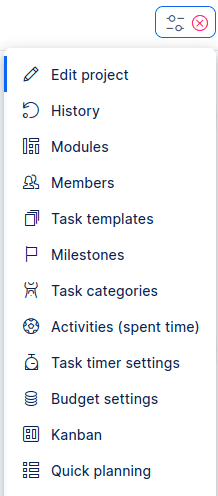
Edit project
In this area, you can manage the central attributes of your project, such as: name, description, start and end date, as well as the visibility of the project. In addition, you can configure custom fields, activate or deactivate modules and define issue types. Changes to these settings have a direct impact on the structure and functionality of your project.
History
In this area you will find a log of changes to the project attributes as well as comments that have been written on the project regarding important announcements or changes. These comments can also be displayed on the project overview page.
Modules
Apart from the regular modules that can be activated/deactivated, you can also define the default project page here, i.e. the page on which you land first when you access the project. In addition, by ticking Has a custom menu? you can reorder the items in the project menu for maximum comfort.
Members
Adding/removing/editing memberships is intuitive, but there are a few principles you need to keep in mind.
- Inherited memberships cannot be modified – as explained in the previous chapter. You will see these checkboxes greyed out.
-
Group memberships
- If you add a group as a member, all members of this group are added to the project.
- It is not possible to remove project members from the project if they belong to a group in this project.
- It is possible to assign different roles to group members.
- When users are added to a group, they are added as members to all projects in which the group is present.
- Group members who are removed from a group are removed from all projects in which the group is registered as a member.
- If project members have been individually assigned a different role in the project, they keep this role in the project even if the group is removed.
You can manage memberships in roles only on the basis of the permissions of your own role (chapter 1.2.7).
Milestones
Milestones are important points in the project schedule. Here you see a simple list of milestones and options for creating, editing or deleting milestones.
The best way to create and edit milestones is via the Gantt view, where they are clearly visualized together with the underlying issues.
Some recommendations and general information about the use of milestones:
- Do not use shared milestones for all projects when you are using project templates – if there is only one common milestone for all projects, this can lead to seemingly random shifts of issue and project dates when you create new projects from templates.
- To change the status of a milestone, click on the milestone and then on Edit. Possible statuses:
- Open – issues can be added to a milestone.
- Locked – a milestone is still open, but you can no longer add new issues under it.
- Closed – all issues are completed and a milestone is thus finished and can be hidden.
In the project’s module bar, milestones are listed under the item Roadmap, which symbolizes the path marked by the milestones. The menu item Roadmap appears as soon as a milestone has been created.
(New in version 13: The agile modules (Scrum & Kanban) are more deeply integrated and can already be preconfigured in the project settings.)
Activities (spent time)
Right at the first setting, an important decision has to be made.
- Activity is selected when creating an issue (or when editing an issue) means that the author of the issue decides which activity will be used for the spent time on this issue; project members who log time for the issue simply enter the hours without selecting the activity. This setting makes time tracking easier for project members, but it makes issue creation more difficult (one more attribute has to be selected). If you initially used the other option and later switch to this one, updating issues that were created without a selected activity also becomes more difficult – the person updating them must select the activity the next time they update. This option is useful if new issues are created only by one person who controls all project operations.
- Activity is selected during the time entry – You should definitely select this option if there are multiple project members who can create issues in this project.
In addition, it is possible to enable/disable activities for time tracking in this project in order to simplify the process a little.
Based on a global setting (chapter 1.3.1 – Assign activities to roles), you will see a matrix of roles and activities that you can configure to define which roles are allowed to log time for which activities. These settings are very complex, but they can significantly simplify evaluations and overviews later on.
Issue timer settings
These settings are identical to the global settings of the task timer (chapter 1.5.4). The difference is that here you have the possibility to override the global settings if you decide that the behavior in this project should be different from the rest of the system.
2.3 Project overview
The project overview remains modular (project description, project team, history, information, issues from filter).
New:
- Embedding of dashboards directly into the project overview.
- Linking with agile boards (Scrum, Kanban).
- Direct access to the “Jump to Dashboards” function for quickly switching between views.
Here is an example of a project overview page. It follows the principles explained in the previous chapters. Consider it as a recommendation for getting started, which you can later adapt according to your own practice.
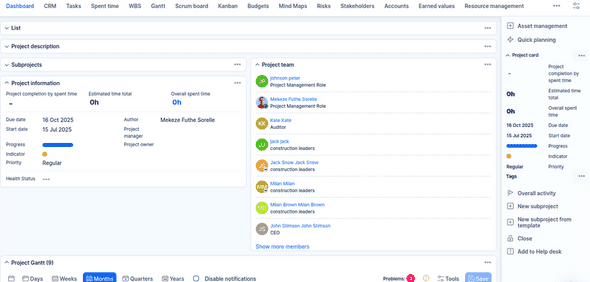
Here is an example of a project overview page. It follows the principles explained in the previous chapters. Consider it as a recommendation for getting started, which you can later adapt according to your own practice.
Project team / Project history
This name indicates that the module is also optimized for the right sidebar area of the project overview, if you want to place it there. The larger area on the left-hand side, as in our example, is a bit more prominent and is better suited if you have several project teams and it is important to present the project staff.
If you are a smaller company and the team is practically identical across all projects, you can replace this module with Project history, which can be found under the group Projects. It shows the comments/updates that responsible staff members have made on the project (entered via Settings > History).
Information This shows the most important information about the project progress, including completion based on spent versus estimated hours and completion derived from the completion of each task, weighted by its estimated time. The indicator shows whether there are any problems:
- Red – project is past its due date
- Orange – at least one task is past its due date
2.4 Project life cycle (details)
From the project’s perspective, the life cycle of a model project looks as follows:
- Planning
- Implementation
- Closure
- Archiving
- Deletion
We strongly recommend never deleting a project that contains production data. Archiving is the safer variant.
Planning
Managers prepare tasks, backlogs and schedules. In version 13, this phase is more strongly supported through the integration of new tools such as Scrum Backlog Planning or Custom Kanban Boards.
Implementation
The active phase in which team members work on tasks, log time and exchange files.
- In classical projects, the workflow remains as before.
- In agile projects, version 13 supports implementation through Team Sprint Boards with swimlanes (Scrum-compliant).
Closure
By closing, a project is put into read-only mode. The data remains visible and searchable, but can no longer be changed. Recommendation: Leave projects in the closed status for a few months before archiving them.
Archiving
Archived projects are invisible and can only be accessed via Administration > Projects > Archived Projects. Time entries remain available for reporting.
Deletion
Deleted projects are first archived and then permanently removed. A restore is no longer possible after final deletion.
2.5 Project modules
Here is a short introduction to the project modules – what are the items in the project menu made of?
2.5.1 Gantt
In our view, and confirmed by thousands of users, the most powerful function in Easy Redmine / Easy Project project management is the Gantt. It allows you to create and edit tasks and milestones, plan the project smoothly, manage relations between tasks, save baselines, display the critical path and export the entire chart.
Most of the administrative work can be carried out here. A detailed manual for Gantt is available in our online knowledge base: https://www.easyredmine.com/documentation-of-easy-redmine/article/easy-gantt-pro
2.5.2 Issues
Unchanged, with flexible filtering, pivot tables and saved filters.
The issue list is mainly used for creating ad hoc reports or for searching. Filtering and reporting in Easy Redmine / Easy Project is quite extensive and flexible, as lists, pivot tables (reports) and charts are supported.
All of these issue reports can be reused via the Saved filters function for one-click access. A recommendation here: Save only those filters that you are certain you will use regularly.
As a reminder: You can also see issues from subprojects in this list. This behavior is based on the global setting (Show subproject issues in parent projects by default – chapter 1.4.1).
Regardless of this setting, you can always manually choose whether or not to display issues from subprojects – by using the filter Subprojects – none or any.
2.5.3 Spent time
As mentioned above, the Spent time module is the place for all types of time reports. The ability to save filters is, of course, also available here.
2.5.4 Documents
There are two functional areas here. First, the simpler one – at the very bottom you will find the list of all files associated with the project’s issues. This makes it easy to find a particular file you are looking for. Another function of Documents is the sorting and categorisation of project files into folders.

We need to draw a clear distinction for some technical terms.
- Document – This is not the file itself, but a folder in which files are stored. In the screenshot above, “Dokument 2” is the document. Documents can be sorted by category (configurable under Administration > Categories > Document categories), date, title or author.
- File – This is the file that you upload into the document. Uploading a file into the document is done via the button Document with a plus sign next to the briefcase and list buttons.
This way of sorting files helps to keep your uploads organised.
2.5.5 Roadmap
If you have created a milestone in the project (e.g. via Gantt), or if there are shared milestones from other projects, the item Roadmap will appear in the project menu. This is another view of issues with basic analytical data, sorted by milestones.
2.5.6 Scrum Board (newly revised in version 13)
If there is not yet a sprint for the project, you will be guided step by step by a wizard to plan a first sprint. In the second step, only those issues are added to the sprint backlog that belong in the sprint.
If a sprint already exists, the current sprint of the project is displayed directly. In the right-hand menu, you can choose whether different sprints should be shown.
The column and card settings are based on the project’s Scrum settings, which are derived from the default settings (chapter 1.4.10 – Agile settings).
Detailed technical documentation: https://www.easyredmine.com/documentation-of-easy-redmine/article/agile-board-scrum-kanban
The biggest innovation in version 13:
- Team Sprint Board with swimlanes: Each Product Backlog Item (PBI) gets its own swimlane.
- Collective responsibility: PBIs are assigned to teams, sub-tasks to individual members.
- Drag & drop for prioritising swimlanes.
- Promotes a truly Scrum-oriented way of working and avoids mini-waterfalls.
2.5.7 Kanban → Custom Kanban (new in version 13)
If there is no standard Kanban setting (chapter 1.4.10 – Agile settings), you must first define the column and card settings.
If the setting is present, you will see the project’s Kanban. In contrast to Scrum, there are no sprints to switch between.
Important – issues are not added to Kanban automatically, but must be added manually to Kanban (button on the right side Project backlog).
Detailed technical documentation: https://www.easyredmine.com/documentation-of-easy-redmine/article/agile-board-scrum-kanban
Extension into a universal visualization tool:
- No sprint required, issues are displayed directly in boards.
- Flexible for support, operations, bug tracking, approvals.
- Can be used at project level, dashboard level or global level.
2.6 Project Templates
Project templates are one of the most important time-saving features in the application. Although every project is unique, there are often parts that many projects have in common.
The uniqueness lies in the project’s content, such as duration, goal, complexity, end product, scope, etc. The form can be the same for projects of the same type, e.g., house construction, market research, product development, etc.
A project template can be pre-planned with predefined issues and milestones in a general structure, as well as with the entire project team. When you create a real project from this template, you enter all specific details and replan it accordingly.
2.6.1 How to create a template
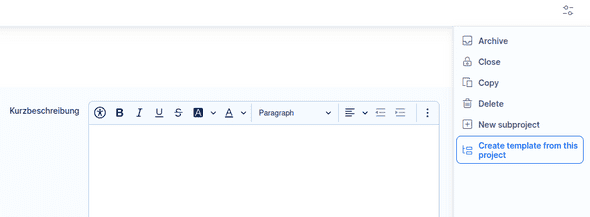
Go to an existing project → Settings > Information > Create template from this project. If the project contains subprojects, they will also become part of the template.
Project templates appear in a separate list, which you can find under Administration > Project templates. Non-administrators can find them under Projects > Create project from template — here, they are first redirected to the template list.
You can recognize that you are currently inside a template by a label next to the project name (TEMPLATE).
To access and modify a project template, you need the permission Create projects from template, which allows you to see the list of templates. Secondly, you must be a member of the template with a role that allows editing the project.
2.6.2 How to create a project from a template
Go to: Settings > Information, where you will find the button Create project from this template.
If the template contains subprojects (sub-templates), these will also be created under the new project. However, if you create a project only from a sub-template, it will not include the parent project from a template.
During project creation, you can shift the dates of issues and milestones, since the template naturally has a schedule in the past (from when it was created).
Here — as well as in chapter 2.2 (Milestones) — we want to remind you to check that no shared milestones are used for all projects if you intend to use the feature for shifting deadlines when creating projects. Otherwise, this would lead to seemingly inexplicable shifts in issue dates.
2.7 Project Portfolio
2.7.1 Global Gantt
Similar to issue management, but on a larger scale, the most powerful tool for portfolio management is the Gantt chart. While the Gantt chart inside a single project offers task-related functions, the global Gantt provides tools for managing the entire portfolio.
The global Gantt is accessible via the menu (three dots next to the profile) > Gantt. It allows you to: Visualize the completion progress relative to planned progress (today). Shift entire projects in time. Quickly filter delayed projects. Display the name of the task that delays each project the most. Break down the view into milestones and tasks.Display resource allocations from Easy Redmine or Easy Project Business Plan. And, of course, export the chart.
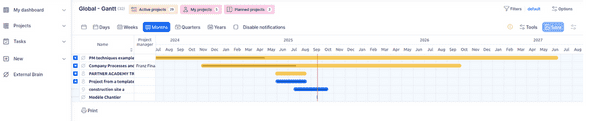
We are frequently asked about missing functionality in the global Gantt that exists in the project Gantt (e.g., creating new issues or showing issue fields in the list). It is possible to see issues in the global Gantt, but there are technical limitations for issue operations and listings because this view is above the level of issues and belongs to projects. Furthermore, it is not best practice for portfolio managers to manage individual issues in the portfolio overview.
A detailed Gantt manual can be found in our online knowledge base: https://www.easyredmine.com/documentation-of-easy-redmine/article/easy-gantt-pro
2.7.2 Project List (Tree)
The standard project list can be used for reports, summaries, or locating a specific project deeper in the structure.
The project list is available under the main navigation item Projects, provided the user type has this module enabled (chapter 1.1.6). We should clarify some details that distinguish the project list from other lists and are often misunderstood.

- Unless you define a specific sorting order, projects are sorted in a tree structure. This means you first see the top-level projects, which you can expand to see subprojects.
- When using filters in a tree structure, results may appear that do not match the filter directly. The reason is that parent projects must also be shown in order to display the relevant filtered projects.
- Sorting and filtering projects by start/due date is only possible if you have disabled calculated project dates — meaning you must enter start/due dates manually (chapter 1.3.1).
- It is not possible to display the tree view fully expanded by default nor to expand all projects with a single button, since this would cause excessive hardware load with a large number of projects.
Project list for administrators
Version 13 introduces a navigation concept that makes dashboards central control instruments:
- Access via dropdown in the main navigation.
- Quick switching between portfolio, process and team dashboards.
- Enables a top-down perspective: from the portfolio dashboard directly into the delivery dashboard of the project.