3. Task and Time Tracking
- 3.1 How to create an issue
- 3.2 Issue description
- 3.3 Operations with issues
- 3.4 Time tracking
- 3.5 WBS – Work Breakdown Structure
- 3.6 Gantt chart
In the previous chapter, we moved upward from the project level to the portfolio. Now it is time to go one level deeper – to the level of issues.
Issues are the most frequently used entity in Easy Redmine / Easy Project. Work should primarily be passed on via issues. It is necessary to at least be familiar with the configurations (e.g. workflow) so that you can fully understand the following operations in their context.
3.1 How to create an issue
There are many ways to create an issue in Easy Redmine / Easy Project in order to make it as convenient as possible for all your project members.
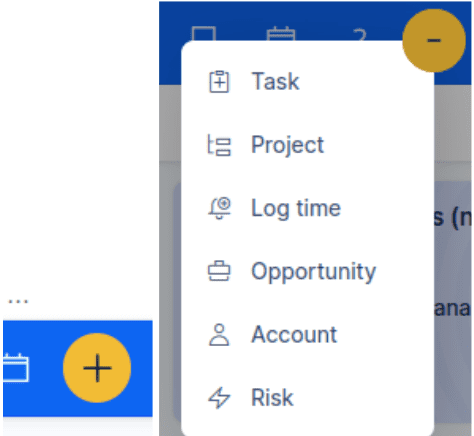
Yellow Plus button
This button is always available, regardless of where you currently are in the application.
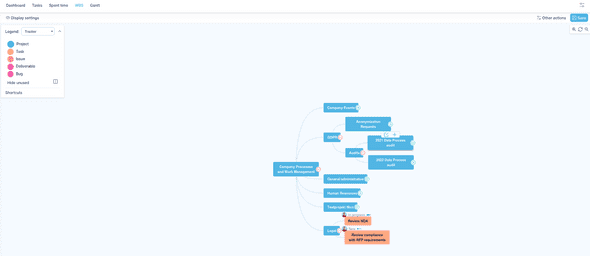
WBS (Work Breakdown Structure)
is the best tool for creating a project and issue structure.
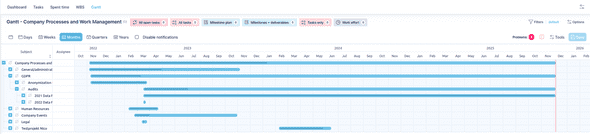
GANTT
The project-level Gantt allows you to create issues by dragging in the chart.
3.2 Issue description
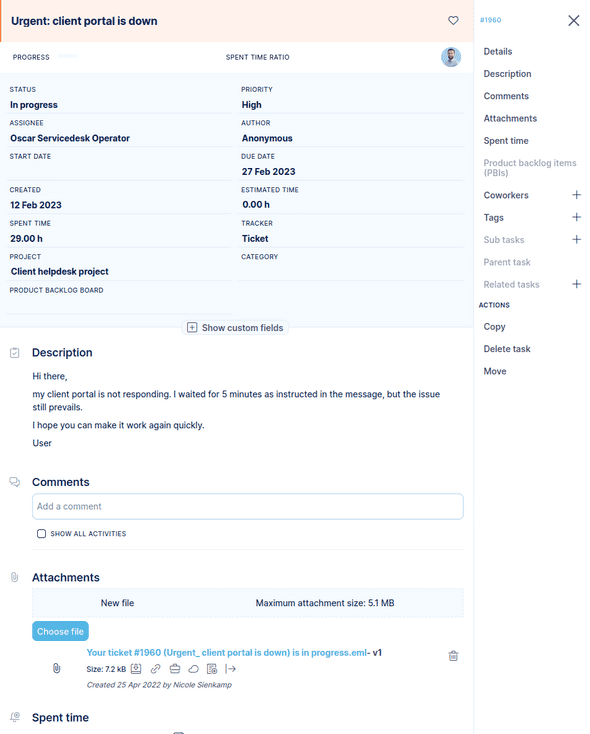
Header and attributes
- At the very top is the subject (name of the issue).
- Directly below it, the following are always visible: status, assignee, priority and due date – these basic attributes are always present.
- A button or link “+ More” expands additional attributes (e.g. issue type, estimated time, custom fields).
- The state of the header (expanded or collapsed) is saved: this means that when you open an issue, it is displayed in the same way you last viewed an issue.
Sidebar
- On the right-hand side, you will find important information on progress and evaluations,
- as well as buttons for updating the issue and editing (e.g. changing attributes, adding comments, changing status).
- At the bottom of the sidebar are export options (e.g. as PDF, CSV, etc.) in order to use or share the issue or its information externally.
What’s new in version 13 (compared to version 12)
- More modern, cleaner design with clearer lines and less visual “noise”.
- Faster reactions, e.g. real-time updates when someone else edits the issue.
- Improved usability: editing directly via small icons (e.g. pencil icon) on attributes.
- More integration with Scrum/Kanban boards so that the issue description is more accessible/editable from boards as well.
3.3 Operations with issues
All of these operations are quite intuitive from the application’s point of view. However, it is useful to explain which peripheral factors determine the behavior (e.g. permissions, global settings, workflows).
Quick Task Editor
There is a more compact, interactive, mobile-friendly view of an issue detail that also allows all operations on the issue. This view is continuously being optimized to make working with issues as smooth as possible.
The main function of the Quick Task Editor is to make changes without having to reload the page or switch to another tab in your browser. It can be opened in the following ways:
- When you hover over an issue in the issue list with the mouse, you will find a special button on the right-hand side.
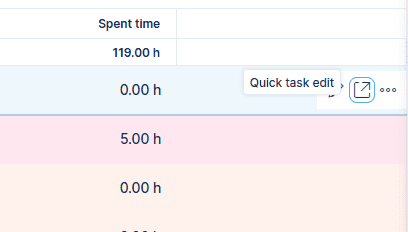
- On the issue detail – button in the top right-hand corner of the issue header.
- In WBS via the Edit button.
- In the Scrum/Kanban board – by clicking on the issue card.
Update
Updating an issue is one of the most frequently performed operations: this includes changing attributes, adding comments and also logging time.
How many attributes and options are displayed depends on:
- the defined workflow – some attributes are read-only or editable only under certain conditions,
- the settings and visibility of custom fields,
- the roles/permissions of users (e.g. whether commenting is allowed),
- and whether certain project modules are enabled (e.g. time tracking).
If an attempt is made to perform disallowed changes (e.g. a due date outside the project period or a required field left empty), an appropriate error message appears explaining which rule has been violated.
In version 13, you can also change issue attributes directly via small edit icons (e.g. pencil) in the header area of the issue, without having to click the general Update button first. Not all attributes can be edited this way — especially when the workflow or roles impose certain requirements. In such cases, a change may lead to an error message (for example, if another field must be filled in when setting a new status).
Time entry
In addition to time tracking via issue update, there is also a dedicated button (More > Time entry) in the issue sidebar. This opens a pop-up window that offers a faster way to log time
Issue timer
- Among the issue operations, the option “Start work” is available in the sidebar, which allows you to start the timer.
- You can pause the work (for example, when you work on another issue or have an interruption).
- When you are finished, you click “Done” or “Stop”, which automatically displays the measured time and takes you to the issue update screen, where you confirm the time or optionally adjust attributes (e.g. status, assignment).
- In version 13, there is the Logging from-to function (from v13.5 onwards), where you can explicitly enter start and end times and an automatic calculation is performed.
Add subtask
- As usual via “Add subtask”: the “Parent task” field is pre-filled.
- If the issue type is configured so that the Parent task field is disabled, this option does not work – it simply does not create a subtask, and it only appears as if the button is not responding.
Copy
- The “Create copy” function opens a new issue form in which most attributes of the original issue are pre-filled. These can be modified.
- Optionally, it may also be defined that attachments are copied or that a relation (“link”) between original and copy remains.
Delete
- Controlled by the Delete issue permission. Warning: Deleted issues generally cannot be restored.
Move
- You can move an issue to another project. This works similarly to an update, with the additional Project field.
- Also, this depends on permissions.
Clone as subtask
- A combination of “Copy” + “Add subtask”. That is: attributes are copied, the Parent task field is pre-filled and the copied issue appears as a subtask.
Merge
- Open an issue and click “More > Merge”. Select an issue you want to merge with.
- The current issue is closed (to the first closed status in the workflow). Comments, description, etc. are transferred into the other issue. Not all fields can always be merged; for example, custom fields are limited to certain types.
Add related issues
- Function for linking issues (relations), e.g. “precedes / follows” or other relation types.
- Depending on global setting/project setting whether such issue relations are allowed.
Watchers (Co-workers)
- People who want to be notified about the issue, even if they are not responsible for it.
- You can add yourself (“eye” icon) or select other members/groups (“+”).
Bulk edit
- You can select multiple issues at once (e.g. in the issue list) and start a bulk edit via right-click / context menu.
- The operations available depend on: permissions, workflow, whether the issues are in the same project, etc.
- If an operation is not allowed for a particular issue, error messages are displayed for that issue, while allowed changes are still applied to the others.
3.4 Time Tracking
3.4.1 How is time tracked?
Time tracking is closely linked to issues and represents a level below the issue structure. This means: PROJECTS > ISSUES > TIME ENTRIES.
For this reason, time tracking appears in the documentation as a subchapter within the issue functions.
Below you will find an overview of the options for time tracking in Easy Redmine 13. Please note: In order for time tracking to be possible for a particular project or issue, the Spent time module must be enabled for the respective project.
Issue update / Quick Task Editor
When you open and update an issue, you will find a section for time tracking. This area is intended exclusively for entering working time – it is not used for changing issue attributes (such as status, priority, due date).
Important notes:
- A comment added in the time entry section is not displayed in the issue comments. It is used solely as an internal note for the respective time entry (e.g. “Bug fixing in module X”, “Phone call with customer Y”).
- In version 13, administrators or project managers can configure whether time is entered as start/end timestamps or as a duration (e.g. 1.5 hours).
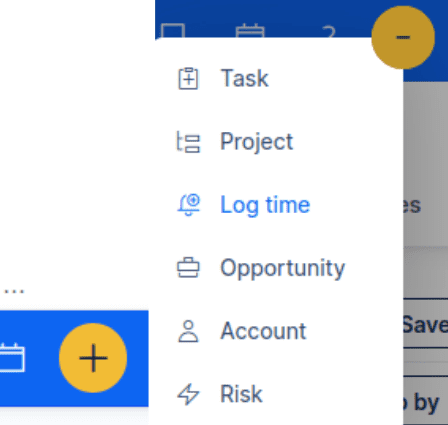
Yellow Plus button
If the submenu is not available, this is because the project members’ permission for time tracking has been disabled and/or the currently displayed project has the Spent time module disabled (chapter 2.5). Otherwise, the item is always visible.
Home page – time tracking calendar
When setting up your users’ homepages (chapter 1.2.5), you can place the time tracking calendar module in a prominent position. It shows users how much time they have logged and whether they have reached the required number of hours (green or red) from the working calendar (chapter 1.2.6). It also allows time to be logged directly.
3.5 WBS – Work Breakdown Structure
As the conclusion of this introduction, we briefly explain the three pillars of modern project management that underlie the task and time tracking logic of Easy Redmine / Easy Project.
We start with the Work Breakdown Structure, because it comes into play right at the beginning of project planning. The WBS is a tool for visual and structured creation of issues. From the perspective of project members, it appears like a mind map of the project’s deliverables and tasks. The advantages of using the WBS compared to adding issues in a table are obvious.
From a technical point of view, it is important for you – the application administrator – to keep a few important specifics in mind in order to ensure seamless use of the WBS by your users.
- Allow the Parent task field for issue types – we discussed enabling/disabling fields per issue type in chapter 1.4.2. If this field is disabled, you cannot create a subtask, because it is defined by the value of the Parent task field.
- Workflow restrictions – pay attention to workflow restrictions (chapter 1.4.4) when creating or editing issues. WBS allows changes to the issue structure via drag & drop, but also to attributes such as priority, assignee, etc. If the workflow forbids project members from making certain changes, these are only validated after clicking Save. This means that users may lose invalid changes and also some of the valid changes that were affected by them.
- Automatic saving of changes – even if you do not click Save manually, the WBS is automatically saved when: A) project members leave the browser tab with WBS; B) project members open the Quick Task Editor; C) after a few minutes of inactivity.
Detailed technical documentation: https://www.easyredmine.com/documentation-of-easy-redmine/article/wbs-work-breakdown-structure
3.6 Gantt chart
As with the Work Breakdown Structure, the Gantt chart is also a drag-and-drop component on top of the issue logic in Easy Redmine / Easy Project. Therefore, similar rules apply that you should keep in mind.
Be careful with workflow rules for project members/roles working with the Gantt. Project members may create an excellent project plan, but after saving, many errors may appear.
The default sorting of issues in the Gantt is chronological – the earliest issues appear above later ones. Of course, the structure of parent issues and milestones is also taken into account (an earlier issue that belongs to a milestone with a later date is displayed lower than a later issue that belongs to a milestone with an earlier date).
Finally, moving issues in the Gantt effectively means changing issue attributes – start date and due date. If you click on the issue name in the Gantt, you open the Quick Task Editor, which is also used for changing issue attributes. Changes must be saved in the Gantt by clicking Save in order to take effect in the system.
Detailed technical documentation: https://www.easyredmine.com/documentation-of-easy-redmine/article/easy-gantt-pro