4. Personal Work Management
- 4.1 Calendar / Scheduler
- 4.2 Activity feed
- 4.3 Email notifications
- 4.4 To-Do list
We have explained the different behaviors of the application based on settings and configurations, then we went through the key entities from the top (projects) via issues down to time entries. Finally, it is time to deal with the people, the users of the application and their perspective.
It should be emphasized once again that the main page for all users is the homepage, which was covered in chapter 1.2.5. Even if users spend most of the day on various specialized dashboards, reports, or operational pages, the homepage still has its purpose.
It is the first page you visit after logging in – and you see what awaits you on that day; and it should be the last page before you log out – log your time, prepare the schedule for the next day. This page should always be the most familiar place for all users. This is a reminder that it should contain only things that users really need to see every day. Secondary information can be provided in the form of links or menus.
The homepage is only one of the features that help them manage their work. Let us now introduce the other personal management features.
4.1 Calendar / Scheduler
Depending on your Easy Redmine or Easy Project plan, you will see different types of calendars in the upper area of the user interface – under the calendar icon. The calendar is therefore always at hand and quickly accessible.
In version 13, the previous separation between Meeting Calendar and Scheduler was removed. Both were merged into a single unified function: the calendar module. This now provides central functionality for planning and managing appointments, issues and resources – both on an individual and on a team/project level.
The available calendar views include:
- Day view
- Week view
- Month view
- Year overview
- Agenda view
In addition, issues, meetings and other relevant appointments can be displayed in the calendar and moved via drag & drop – especially in the so-called manager mode, in which you can see and coordinate multiple users and their tasks at once.
In personal mode, only your own tasks and appointments are displayed. This distinction enables a clear separation between individual and team-wide planning.
Furthermore, it is possible to:
- import calendars from other sources (e.g. Google Calendar or Outlook),
- export calendar data in iCal format,
- activate notifications for upcoming appointments,
- and configure settings such as displaying weekends or the default start time for new appointments.
4.2 Activity Feed
For users who spend a lot of time directly in Easy Redmine / Easy Project, there is an in-app channel that informs them about progress on relevant issues.
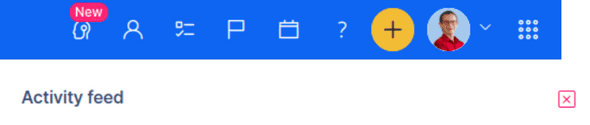
You can find it in the right sidebar. It contains unread comments on issues where you are the assignee, author or watcher. When you visit the issue and see the comment, this item automatically disappears from the activity feed.
Detailed technical documentation: https://www.easyredmine.com/documentation-of-easy-redmine/article/navigation-and-menus
4.3 Email Notifications
While the activity feed is most useful when you are logged into the application, you can use email notifications when you are on the go.
All users who are allowed to edit their own profile can define the level of email notifications for themselves – from complete silence to a full stream of information and various options in between, depending on proximity to events (e.g. issue updates).
Please bear in mind that the number of email notifications can increase significantly the more project members, projects and issues your application has. In such cases, it is advisable to use the option “Only for things assigned to me”.
Filters in the email client
Your email program (Outlook, Thunderbird, etc.) can also help structure the flood of notifications. Here are some tips for configuration:
- Create a folder for notifications from Easy Redmine / Easy Project – you may not want these emails in your main inbox. Use a filter on sender label or subject (see chapter 5.1.5).
- Create a special folder for notifications about your issues – messages about issues assigned to you typically contain in the subject line “Your issue has been updated” or “New issue for you”.
- Notifications about newly created issues always contain the text “New issue” in the subject.
Based on this information, you can sort issue notifications into separate folders and move all other notifications, for example, into a folder called “Other” – such as for events that do not concern issues.
Our recommendation: set up at least a separation between “My issues” and all other notifications.
4.4 To-Do List
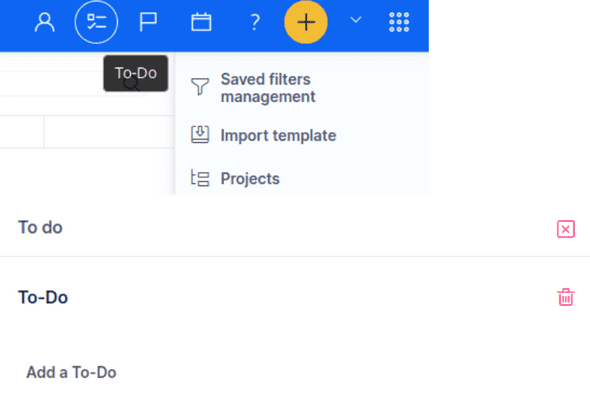
A very simple tool, but one that is worth its own chapter. The To-Do list is permanently available in the right sidebar and can contain your notes, tasks, useful links, reminders, cheat sheets, etc.
Multiple lists can be enabled under: Administration > Plugins > Quick “To-Do” reminders – Configure.